Make Integration
Full developer reference for the FFmpeg Micro Make app. Step-by-step install, all 13 modules, the underlying API contract, and answers to common questions.
Installation
Set up the FFmpeg Micro app in your Make account in three steps. You'll need an FFmpeg Micro API key first. If you don't have one yet, sign up for free.
Step 1: Find the app
In your Make scenario, click the + button to add a module. Search for "FFmpeg Micro" in the app directory.
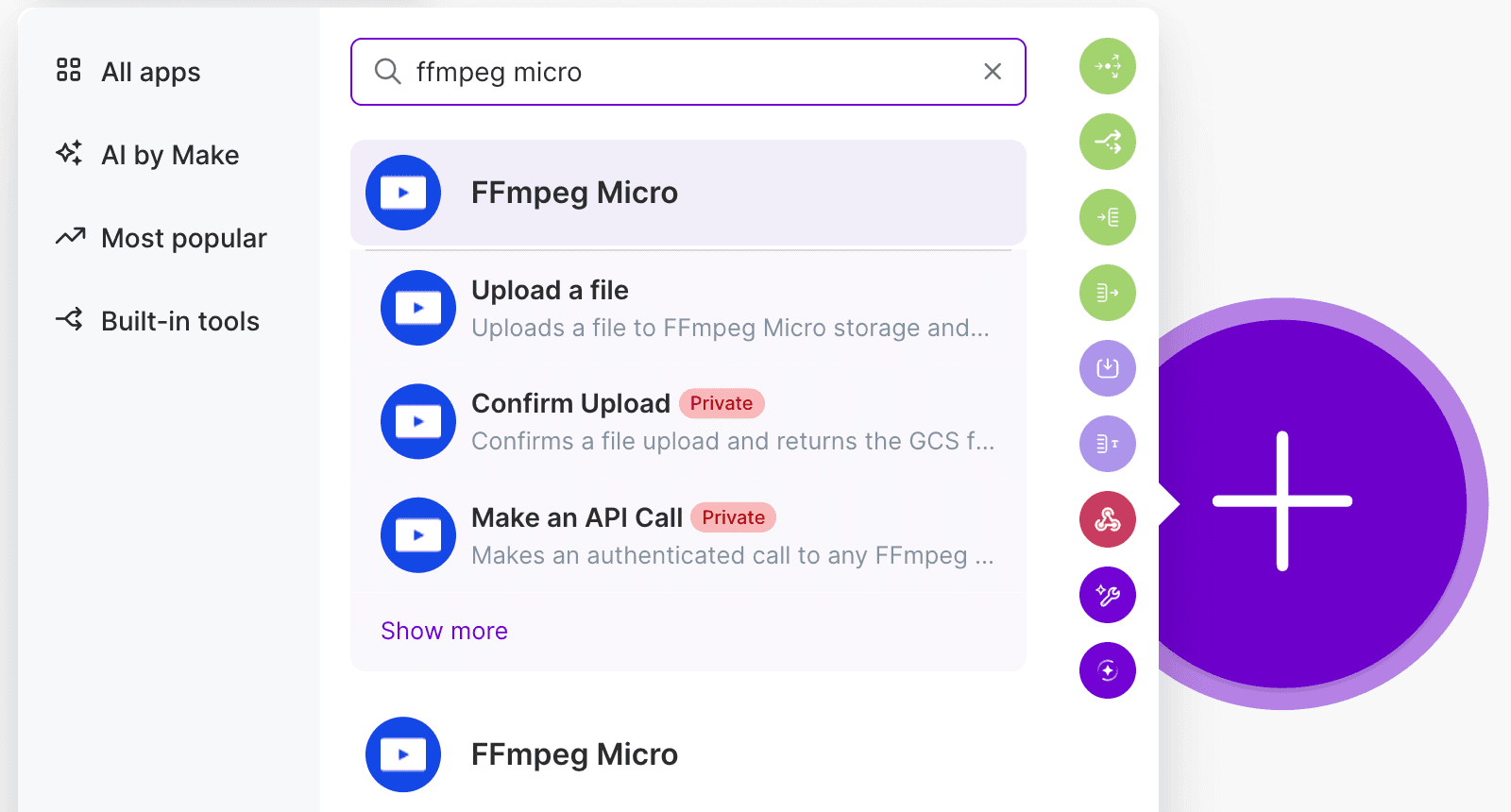
Step 2: Connect with your API key
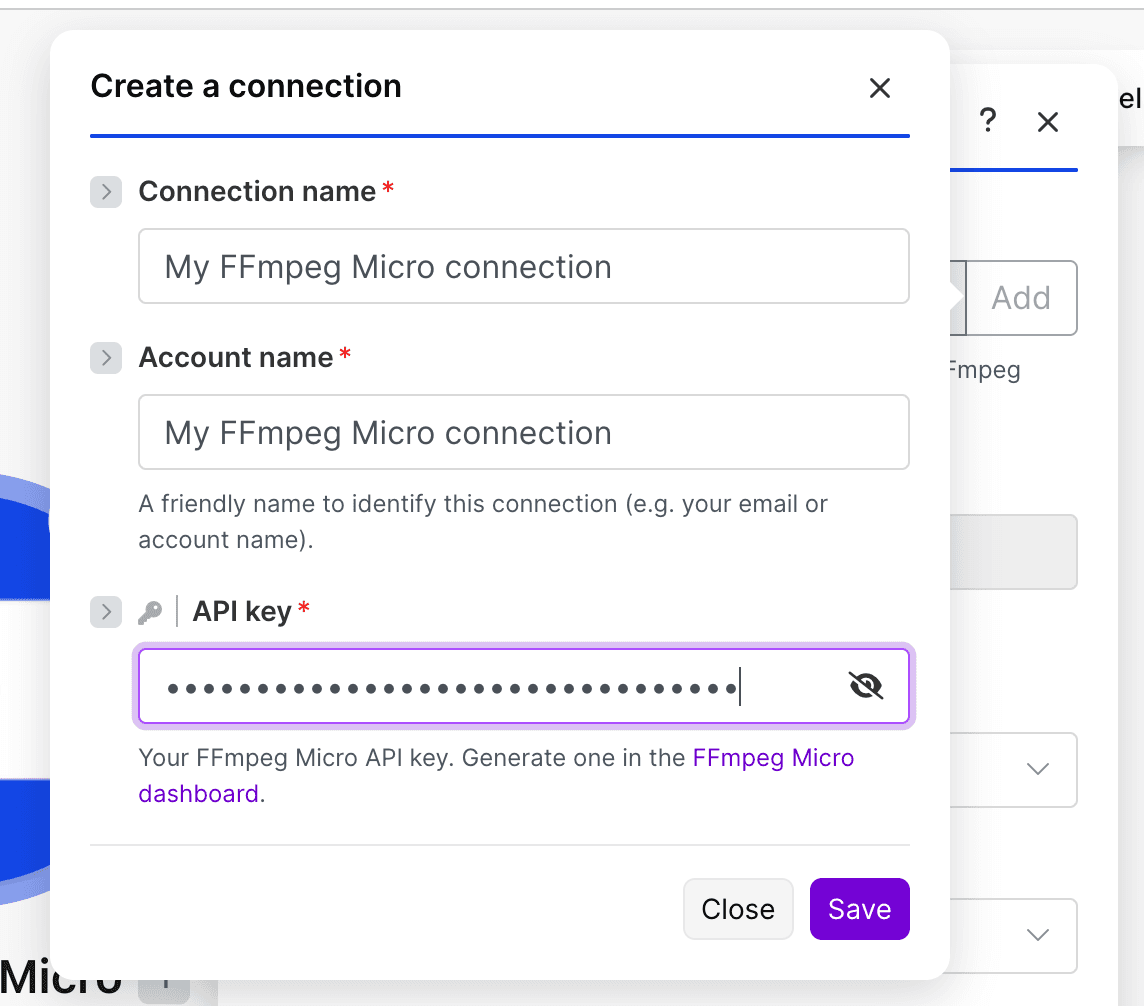
Select any FFmpeg Micro module, then click "Add" next to the Connection field. You'll be prompted for your API key.
- Sign up for FFmpeg Micro if you haven't already (free tier, no credit card required)
- Copy your API key from the dashboard
- Paste it into the Make connection dialog
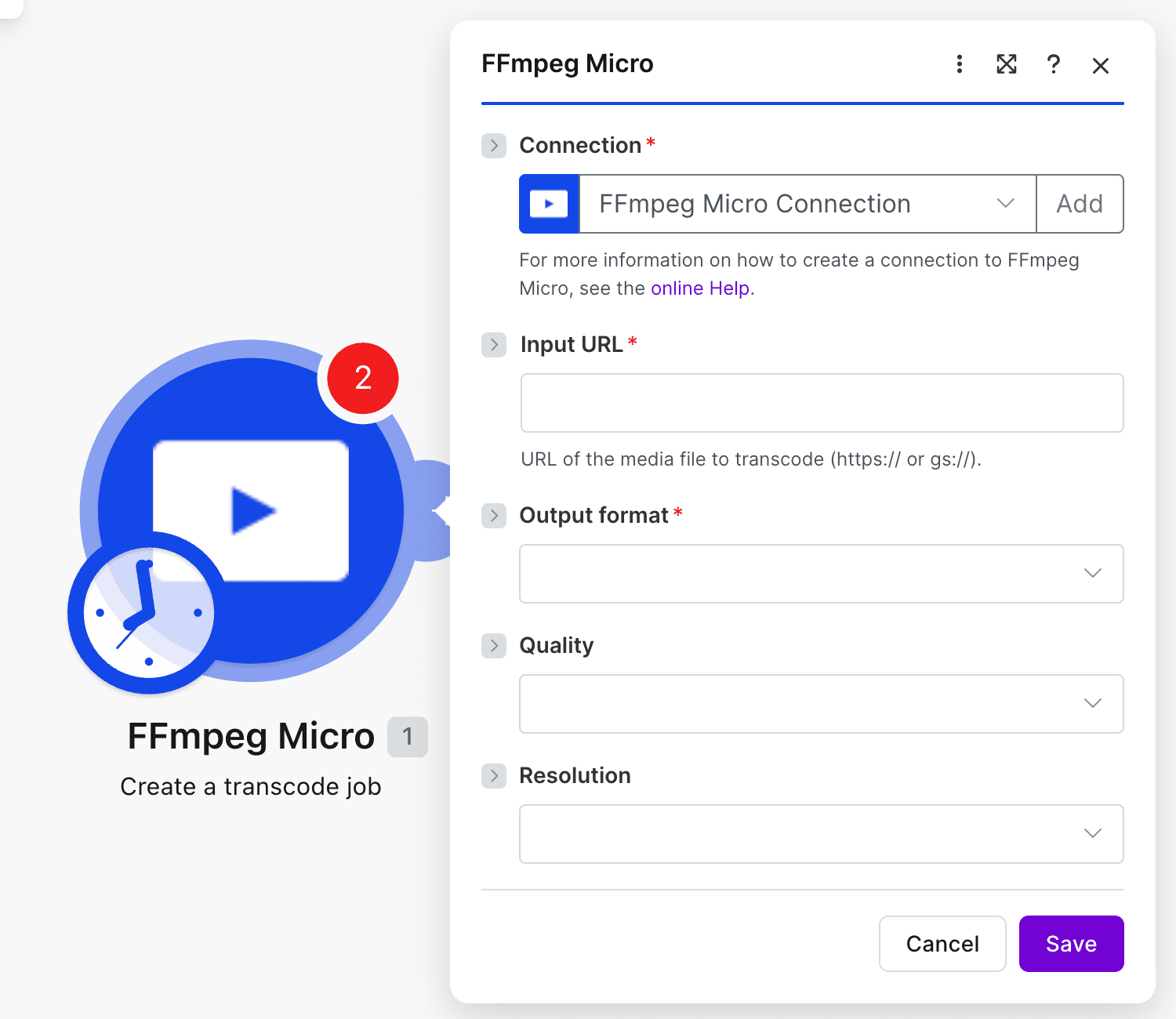
Step 3: Configure your first action
Once connected, configure your first module. Map video URLs from previous modules (Google Drive, Dropbox, webhooks) and set your output parameters. Make will guide you through the available fields.
Ready-to-use scenarios
Skip the build — clone one of our pre-built scenarios into your Make account and swap in your own video source. Each one is a complete webhook-driven workflow ready to wire up.
Crop video to 1:1 square
Crop any video to a centered 1:1 square. Common for Instagram feed and TikTok thumbnails.
Open in Make →Combine two videos end to end
Concatenate two videos sequentially into one MP4. Useful for stitching intro and main content.
Open in Make →Extract audio from video (MP3)
Pull the audio track out of any video and save it as MP3. Useful for podcast workflows and transcription.
Open in Make →More scenarios coming — 12 additional templates are in Make's review queue (combine with crossfade, add audio track, mute, volume up/down, trim, loop, resize, fade, extract frame, text overlay, quote card). This page will be updated as they're approved.
Available Modules & Actions
The FFmpeg Micro app exposes 13 modules across three categories: video processing (transcode jobs and downloads), audio transcription (Whisper-powered), and utilities (the polling trigger, file upload, and a universal API call escape hatch). Every module wraps a single REST call to api.ffmpeg-micro.com, so anything available in the API is reachable from a Make scenario.
Video Processing
Submit, monitor, and retrieve transcode jobs. Use these modules to resize, compress, convert formats, trim, apply filters, or chain any FFmpeg flag through the JSON request body.
Create Transcode Job
Submits a new transcode job. Provide one or more input URLs and an outputs array specifying the output filename, codec, container, and any FFmpeg filter arguments (resize, crop, watermark, and so on). Returns the job ID immediately. The job runs asynchronously, so pair this with one of the Wait modules or the Watch Completed Jobs trigger.
Wait for Transcode Job
Blocks the scenario until a specific transcode job completes or fails. Polls every 4 seconds for up to 72 attempts (about 4 minutes 48 seconds, just under Make's 5-minute per-module timeout). Use this for short jobs that fit within a single scenario run. For longer jobs, switch to the Watch Completed Jobs trigger pattern.
Get Transcode Job
Fetches the current state of a transcode job by ID. Useful for one-off status checks, custom polling loops, or fan-in scenarios where the job ID arrives from a webhook or database lookup.
List Transcode Jobs
Returns a paginated list of your recent transcode jobs with filters for status (pending, completed, failed) and a cursor for "jobs created since timestamp." Use this for dashboards, batch reconciliation, or backfilling missed completions.
Get Download URL
Generates a signed download URL for a completed transcode job's output. URLs are short-lived and can be passed directly to downstream modules like Google Drive, Dropbox, or any HTTP module that expects a file URL.
Audio Transcription
Submit, monitor, and retrieve transcription jobs powered by Whisper. Output is available as raw text, JSON with word-level timestamps, SRT, or VTT subtitle files depending on the requested format.
Create Transcribe Job
Submits an audio or video file for transcription. Returns the job ID immediately. Accepts any HTTPS URL as input, including the output of a Create Transcode Job, so you can transcribe a clip you just rendered without an intermediate upload.
Wait for Transcribe Job
Same pattern as Wait for Transcode Job, but for transcription. Polls every 4 seconds, capped at 4 minutes 48 seconds. Suitable for short clips that complete within Make's per-module timeout.
Get Transcribe Job
Fetches the current state of a transcribe job. Returns job metadata and status. Use this for custom polling logic or reconciliation against your own database.
List Transcribe Jobs
Returns a paginated list of recent transcribe jobs. Filterable by status and timestamp. Mirrors List Transcode Jobs for the transcription pipeline.
Get Transcribe Download
Returns the completed transcript content in the format you request. Pick the format with the format parameter (text, json, srt, or vtt).
Triggers & Utilities
The polling trigger for asynchronous completion, a file-upload helper that bundles three HTTP calls into one, and a universal API-call module for endpoints the dedicated modules don't yet cover.
Watch Completed Jobs
Fires on a Make schedule and emits one bundle per newly-completed transcode or transcribe job since the last run. Tracks state via Make's built-in cursor (the since parameter), so duplicates don't happen across runs. Use this for fan-out workflows where Scenario A creates jobs and Scenario B picks up completions, or for long-running jobs that exceed Make's per-module timeout.
Upload File
Uploads a video or audio file from Make to FFmpeg Micro. The module bundles three HTTP calls into one: it requests a signed upload URL, PUTs the binary to Google Cloud Storage (stripping the bearer token on that step so your API key never leaves api.ffmpeg-micro.com), then confirms the upload to register the file with your account. Use this when your source file isn't already accessible via a public URL.
Make an API Call
The escape hatch. Lets you call any FFmpeg Micro API endpoint that isn't covered by a dedicated module. The base URL is hard-prefixed with https://api.ffmpeg-micro.com, so your API key never leaks to arbitrary hosts. Useful for endpoints in beta, custom integrations, or one-off operations like account-level queries.
Example API Call
Under the hood, every Make module wraps a call to the FFmpeg Micro REST API. The Create Transcode Job module, for example, submits a body like this to POST https://api.ffmpeg-micro.com/v1/transcodes:
{
  "inputs": [{ "url": "https://example.com/source.mp4" }],
  "outputs": [{
    "filename": "vertical.mp4",
    "video_codec": "h264",
    "filters": ["-vf", "crop=ih*9/16:ih,scale=1080:1920"]
  }]
}
The Make module handles the HTTP request, authentication, and field mapping. You can also call the API directly via the Make an API Call module (any endpoint under api.ffmpeg-micro.com) or from outside Make entirely. See the FFmpeg API reference for the full specification.
Wait Modules vs the Polling Trigger
Transcoding and transcription jobs are asynchronous. You have two patterns for waiting on completion:
- Wait for Transcode Job / Wait for Transcribe Job: Polls the job status every 4 seconds for up to 72 attempts (about 4 minutes 48 seconds, just under Make's 5-minute per-module timeout). Use this for short jobs that typically finish in a few minutes within a single scenario.
- Watch Completed Jobs (polling trigger): Polls
GET /v1/transcodes?status=completed&since=...on a Make schedule. Use this for long-running jobs or fan-out workflows where scenario A submits the job and scenario B picks up the completion. The trigger fires once per newly-completed job and tracks state via Make's built-in cursor.
For jobs that may exceed Make's per-module timeout (large files, complex filter chains), use the trigger pattern.
Frequently Asked Questions
How does pricing work?
Free to start: 200 tokens when you sign up, about 33 minutes of video, no credit card. Paid plans start at $19.99 a month for 2,500 tokens. You can also buy token packs without a plan. See the pricing page for plan details. Make usage is separate (standard Make operations apply).
Which regions does FFmpeg Micro run in?
Processing runs in Google Cloud's us-central1 (Iowa). Input videos can be sourced from any URL, and output videos are delivered via CDN globally.
What's the file size limit?
File size limits depend on your plan: 100MB on Free, 1GB on Starter, 2GB on Pro, and 5GB on Scale. See pricing for full plan details.
How do I uninstall the app?
In Make, go to Settings → Connections → find your FFmpeg Micro connection → click "Delete." This removes the connection from Make but does not cancel your FFmpeg Micro account. To cancel your FFmpeg Micro subscription, visit your dashboard.
Can I use both the app and the HTTP module?
Yes, they use the same API under the hood. You can mix and match depending on your scenario needs. The official app is recommended for new scenarios because it's faster to set up and maintains itself (endpoint changes are handled automatically).
What happens if a job fails?
The "Wait for Job" modules retry automatically up to Make's timeout (~5 minutes). If a job fails, the module returns an error status you can handle with Make's error routing. Common failures (invalid format, unsupported codec) include a detailed error message you can log or alert on.
Looking for the high-level overview? See the Make integration overview for what the app does, who it's for, and how it compares to the HTTP module.